Application Configuration via Windows Registry Editor
Application settings were moved to the Registry in the 2.8 release. If you are using an older version of Connection Manager, refer to the Application Configuration File.
For your application settings to be automatically migrated from the configuration file to the Registry, you need to run Connection Manager as an administrator.
If Connection Manager is installed for all users of a machine, the registry settings can be adjusted in the following path:
Computer\HKEY_LOCAL_MACHINE\SOFTWARE\Delinea Inc.\Delinea Connection Manager\AdminConfig
If you installed Connection Manager just for yourself in a per-user folder, the registry settings can be adjusted in the following path:
Computer\HKEY_CURRENT_USER\Software\Delinea Inc.\Delinea Connection Manager\UserConfig
If you are upgrading to 2.8 from a previous version, your application configuration settings will be carried over from the application configuration file to the Registry editor if you run Connection Manager as an administrator. For new Connection Manager installations, the values will be set at their default value.
Disabling Update Check on Startup
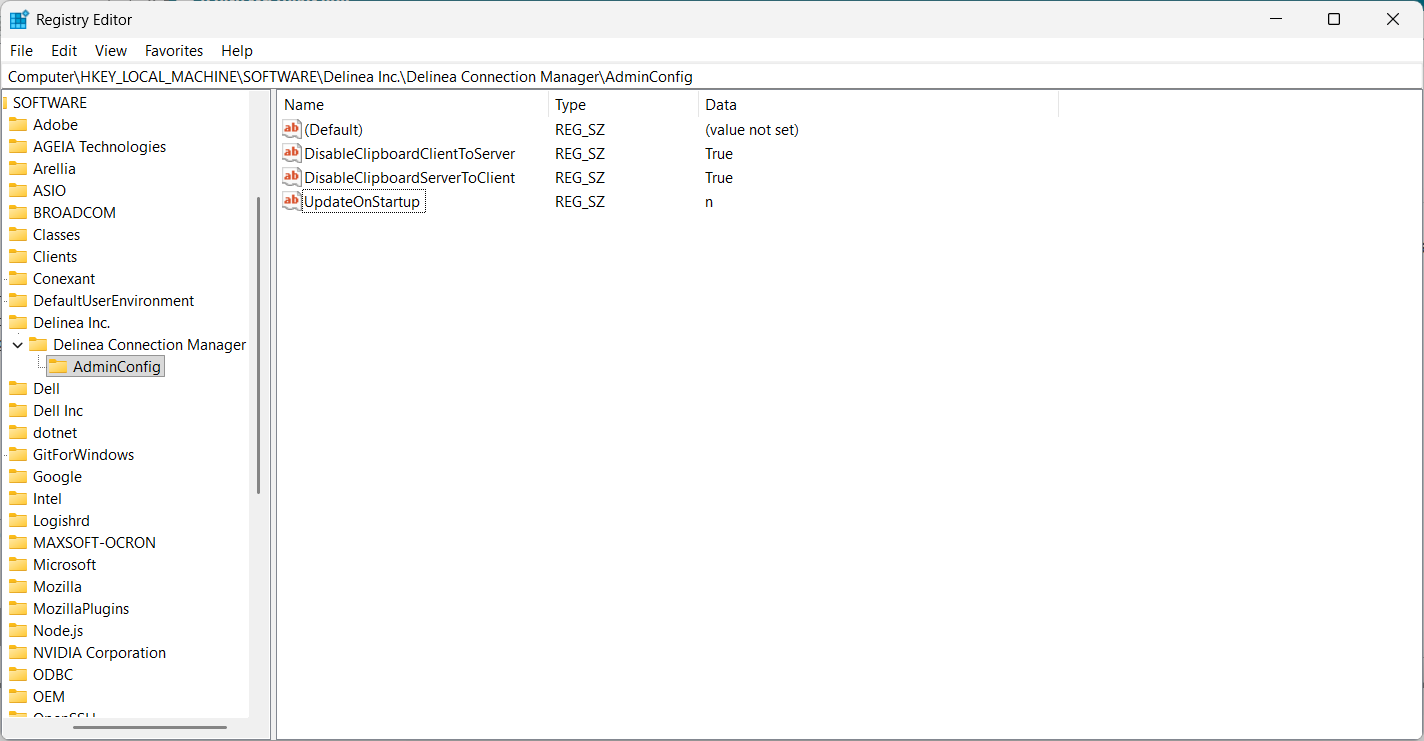
To disable automatic checking for updates on startup, for Windows open the Registry editor and change the value to n as shown below:
Enabling/Disabling Auto Reauthenticate
This feature provides the option to configure vault reauthentication behavior in Connection Manager. Users may keep the existing behavior that automatically restarts the authentication flow or force a fresh login when their vault session/refresh tokens have expired--mimicking the existing web API behavior.
The default value is y which automatically restarts the authentication flow. If the value is set to n, the behavior will be more similar to the web API which forces a fresh login. The n option is beneficial for users who use SAML configuration through an external identity provider with a longer session/refresh length and enables audit logs to correctly generate upon logout.
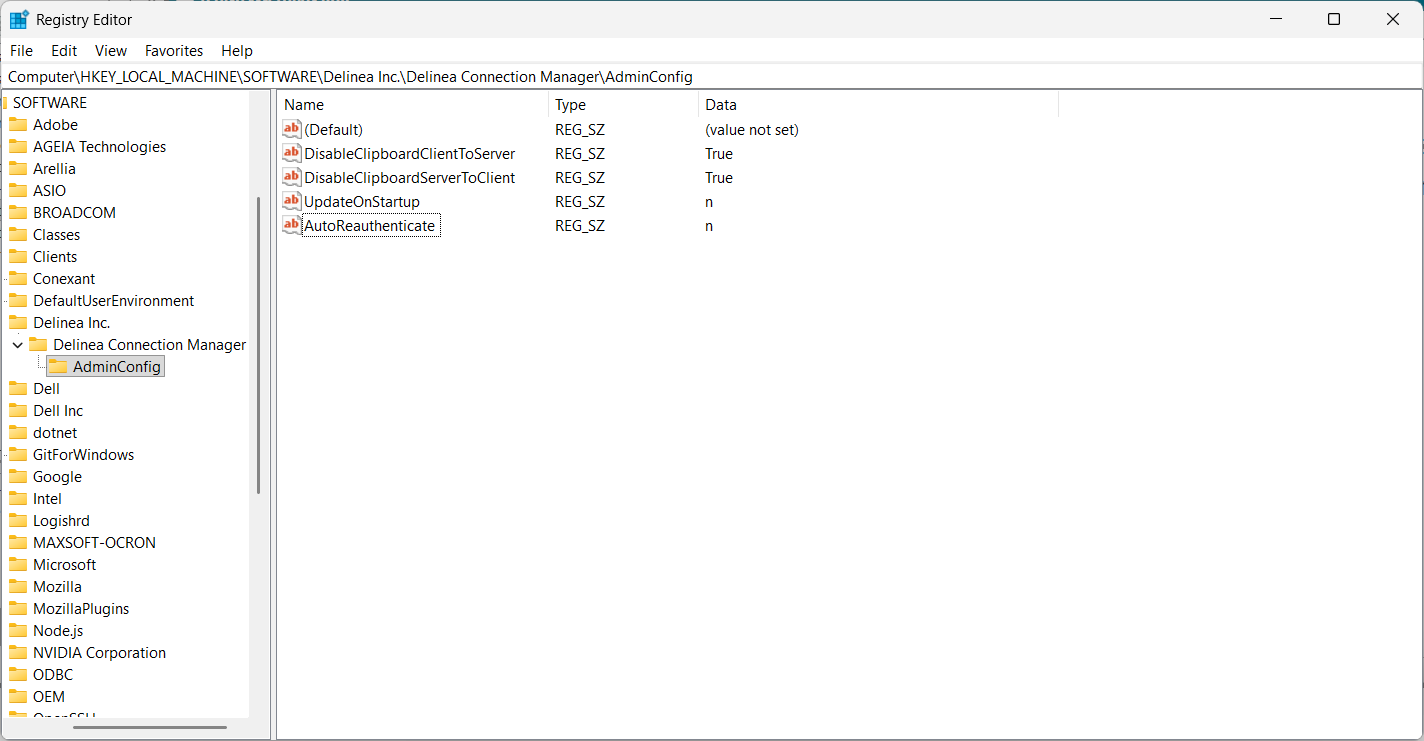
Adjust the AutoReauthenticate parameter with the needed value:
Enabling the Session Status Popup
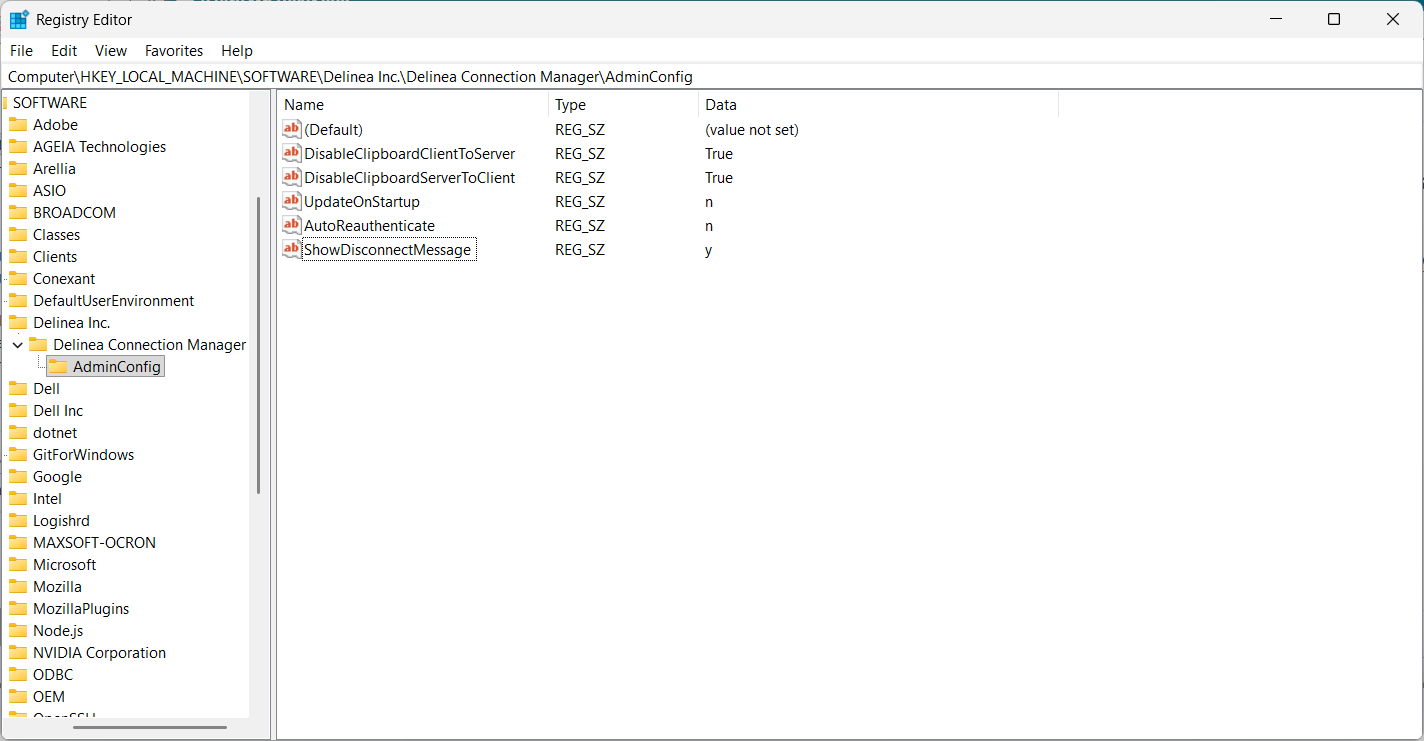
The Session Status popup window is disabled by default. This window would appear every time a user signed out of a session, confirming that they also signed out of the server. However, if you are experiencing memory leak issues, Delinea recommends enabling this window by updating the ShowDisconnectMessage value to y.
Adjust the ShowDisconnectMessage parameter with the needed value:
Setting the Screenshot Queue Limit
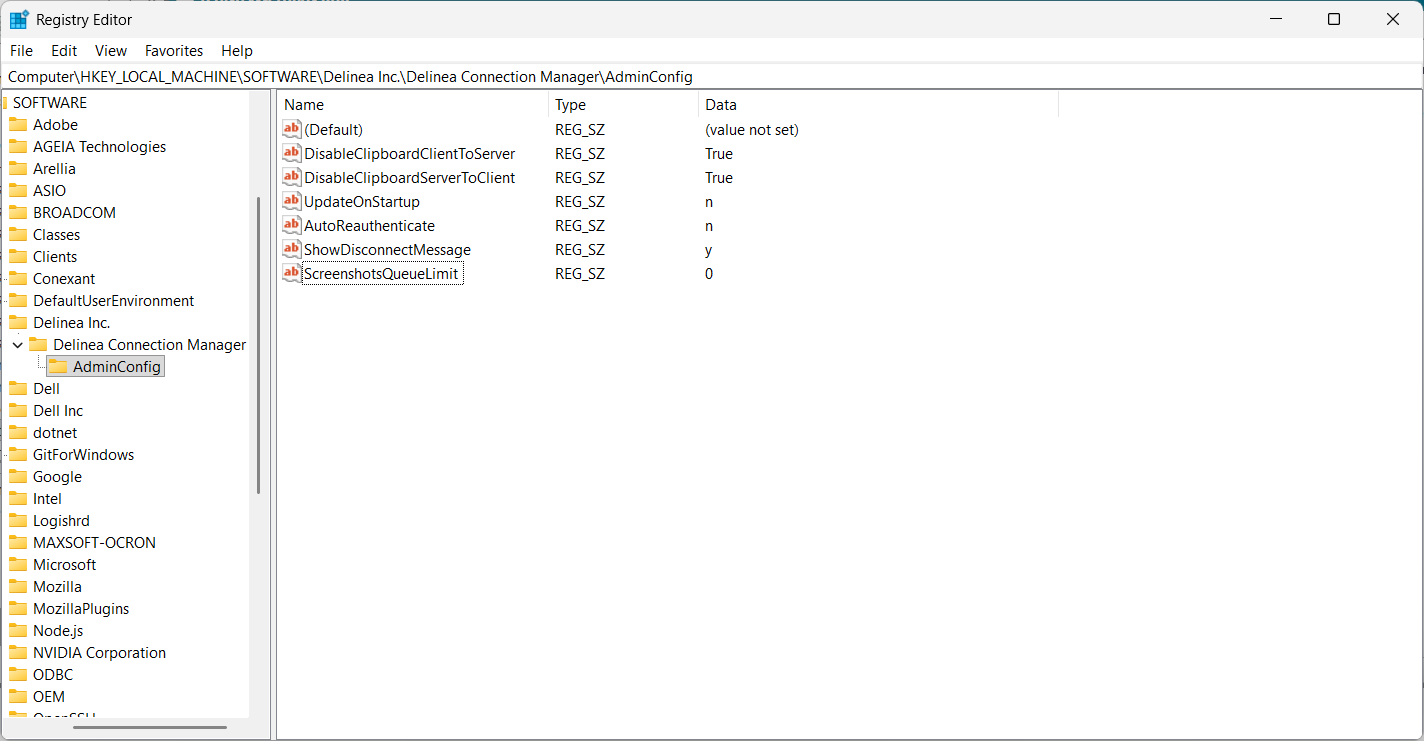
If you have session recording enabled and are experiencing unstable internet connectivity, Connection Manager may no longer be able to send screenshots to the server and your session will be terminated. If you continue to experience internet connectivity issues, you can try increasing the screenshot queue limit to allow screenshots to be temporarily saved locally until connectivity is restored. The screenshot queue limit can be increased by changing 0 to any positive value.
Adjust the ScreenshotsQueueLimit parameter with the needed value:
Configuring RDP Connection Timeout Over TCP
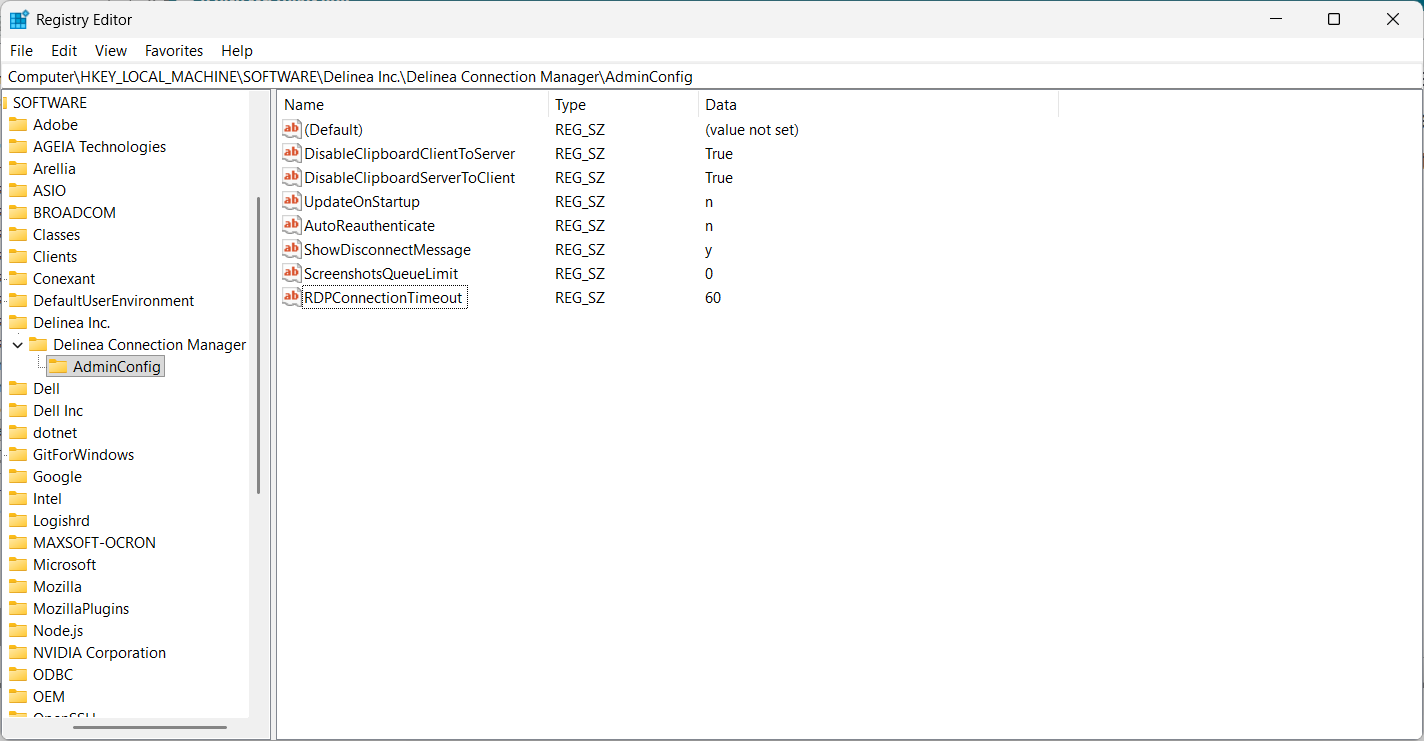
This configuration allows the ability to customize RDP connection timeouts in seconds. This is helpful for situations involving proxy, MFA, or other configurations that require additional time to connect before timeout due to inactivity. The timeout can be adjusted as needed, but the recommended suggestion is to start with 60 seconds as shown below.
Adjust the RDPConnectionTimeout parameter with the needed value:
Configuring SSH Connection Timeout Over TCP
This setting allows administrators to configure the amount of time (in seconds) during which a user can be inactive (i.e., not interacting with the system in any way) without any impact on their SSH session. After the timeout expires, the user will be disconnected from the session and session itself will be closed. The default value is set at 60 seconds, but can be adjusted as needed by changing the value shown in the example below.
Adjust the SSHConnectionTimeout parameter with the needed value:
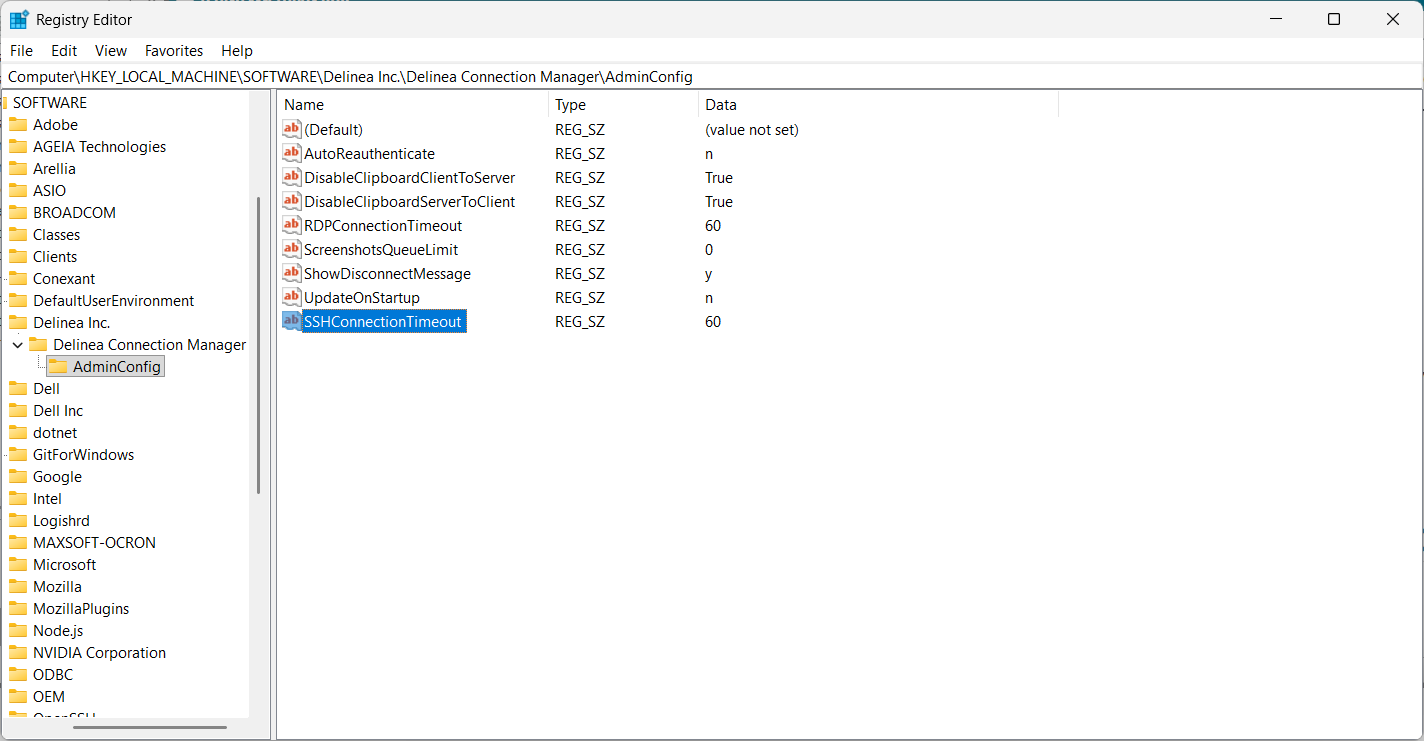
In versions 2.5.x of Connection Manager, this value was measured in milliseconds. If users already had a value set in milliseconds, Connection Manager will preserve that value after upgrade. Otherwise, the default value will be set, which is 60 seconds.
Enabling WebAuthn Authentication for All Users on Windows
If you would like to enable WebAuthn authentication for all users, you will need to create a new string value called WebAuthnVaultEnforcement and set the value to y as shown below:
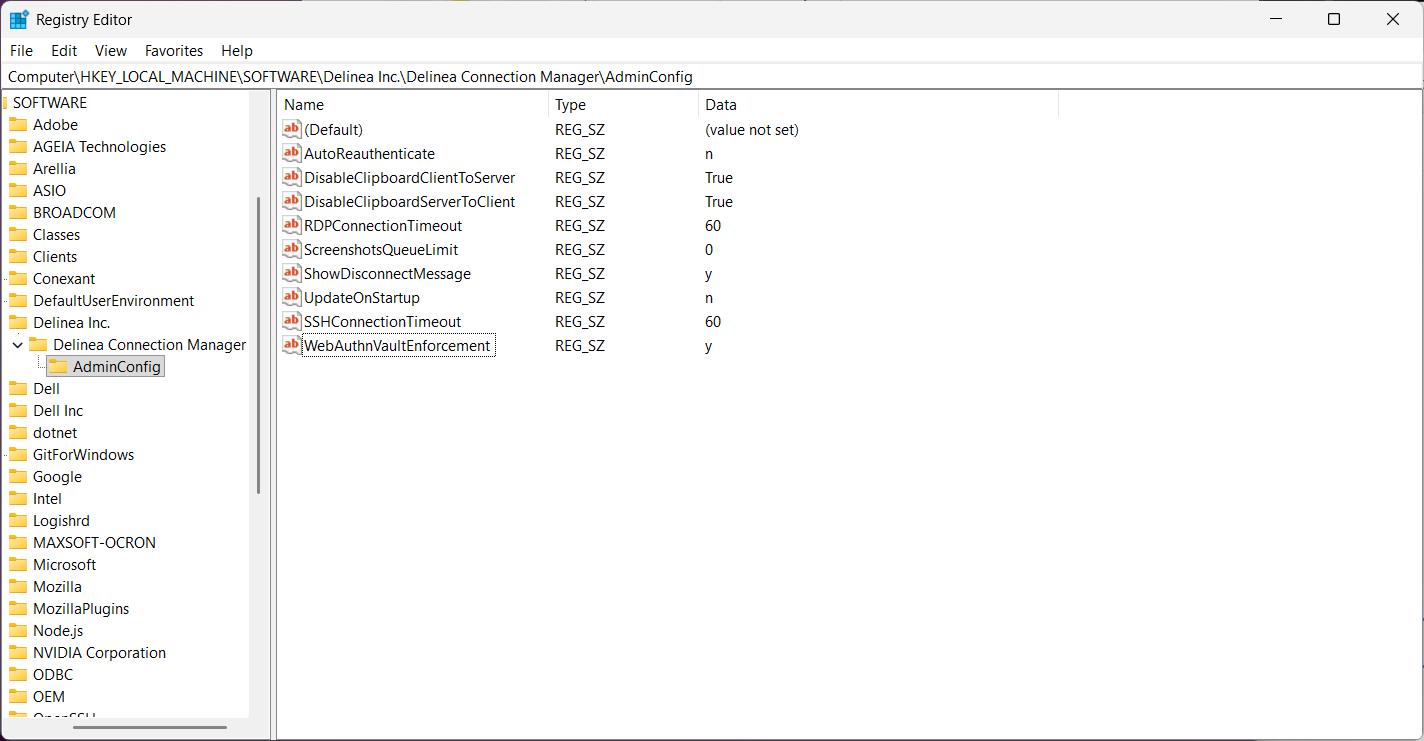
WebAuthn authentication admin enforcement only enforces vault connections.
RDP Rendering Settings
If you are experiencing memory leak issues, add the following settings in the Registry Editor:
-
RDPAcceleratorPassthrough: Specifies if keyboard accelerators should be passed to the server. Set this parameter to 0 to disable the feature or a nonzero value to enable the feature. The default is a nonzero value: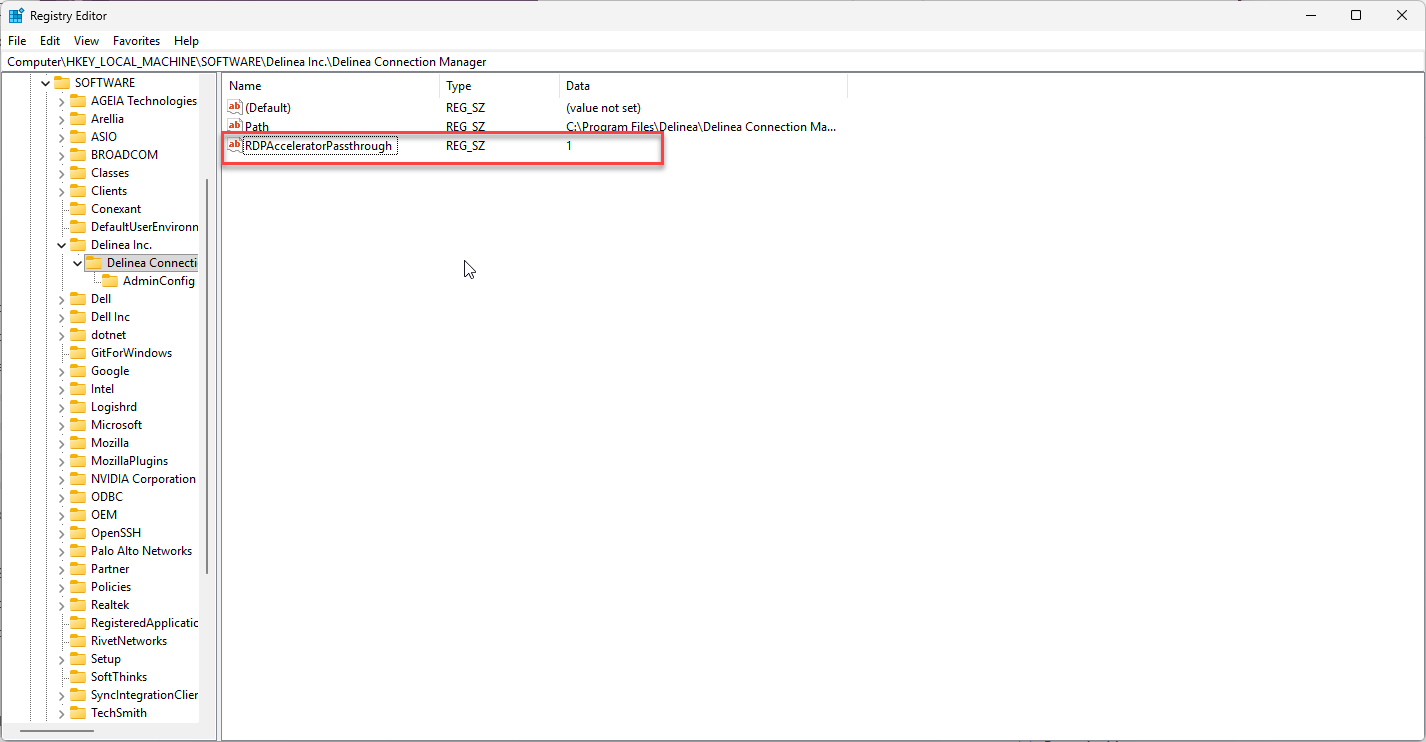
-
RDPBitmapPersistence: Specifies if persistent bitmap caching should be used. Persistent caching can improve performance but requires additional disk space. Set this parameter to 0 to disable caching or a nonzero value to enable caching: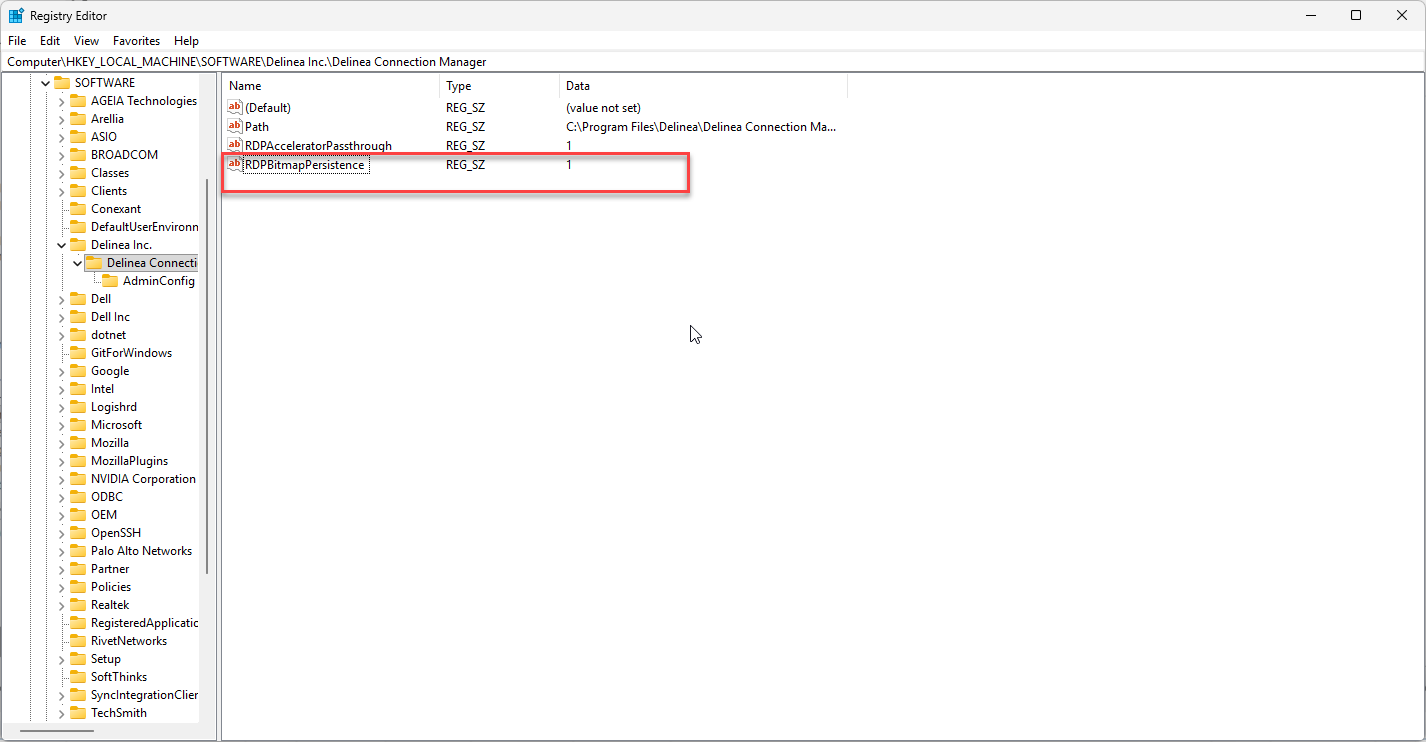
-
RDPBandwidthDetection: Specifies if bandwidth changes are automatically detected. Set the value totrueif bandwidth changes are automatically detected orfalseotherwise.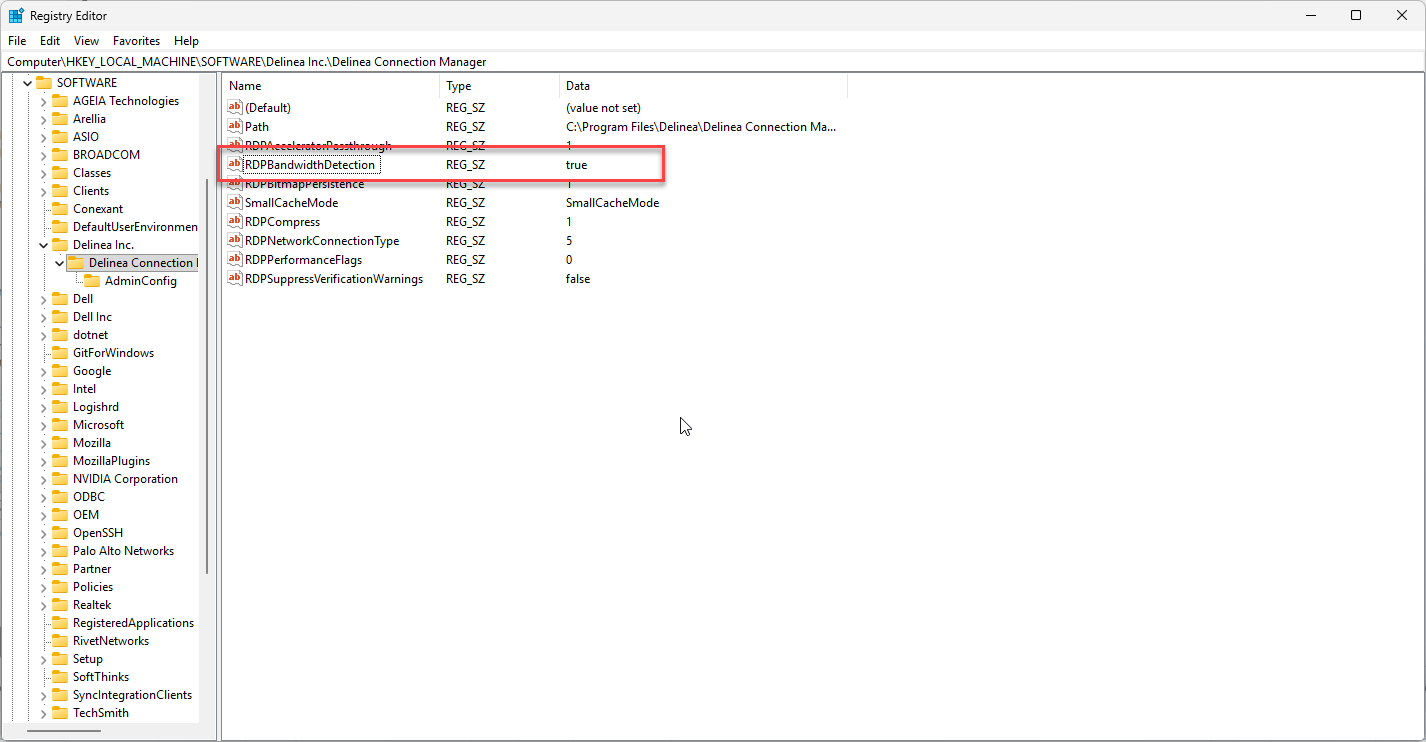
-
RDPClientProtocolSpec: Specifies the remote desktop protocol used between the client and the server. This property is read/write:FullMode,ThinClientMode,SmallCacheMode: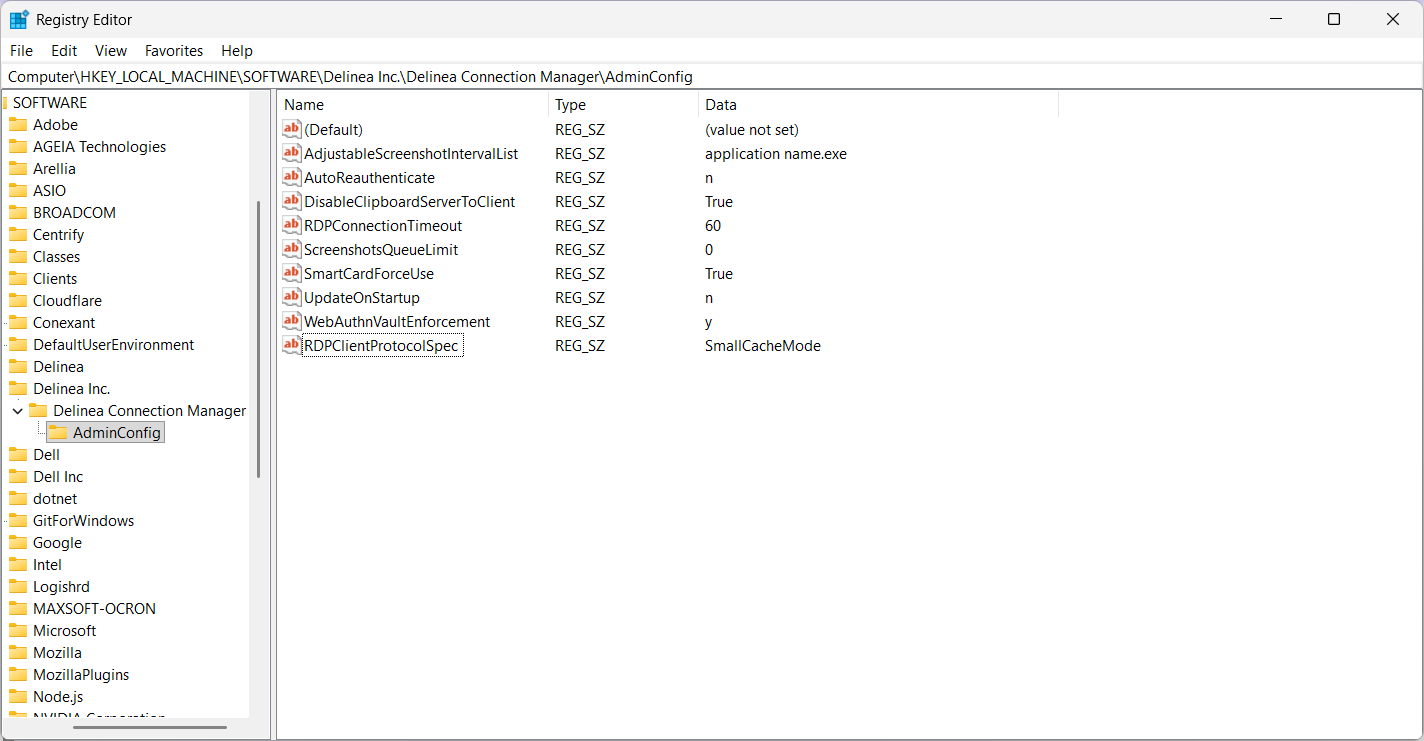
-
RDPCompress: RDP compression settings balance memory vs. bandwidth, configured via Group Policy (gpedit.msc). Set the value to 1 to turn on RDP compression: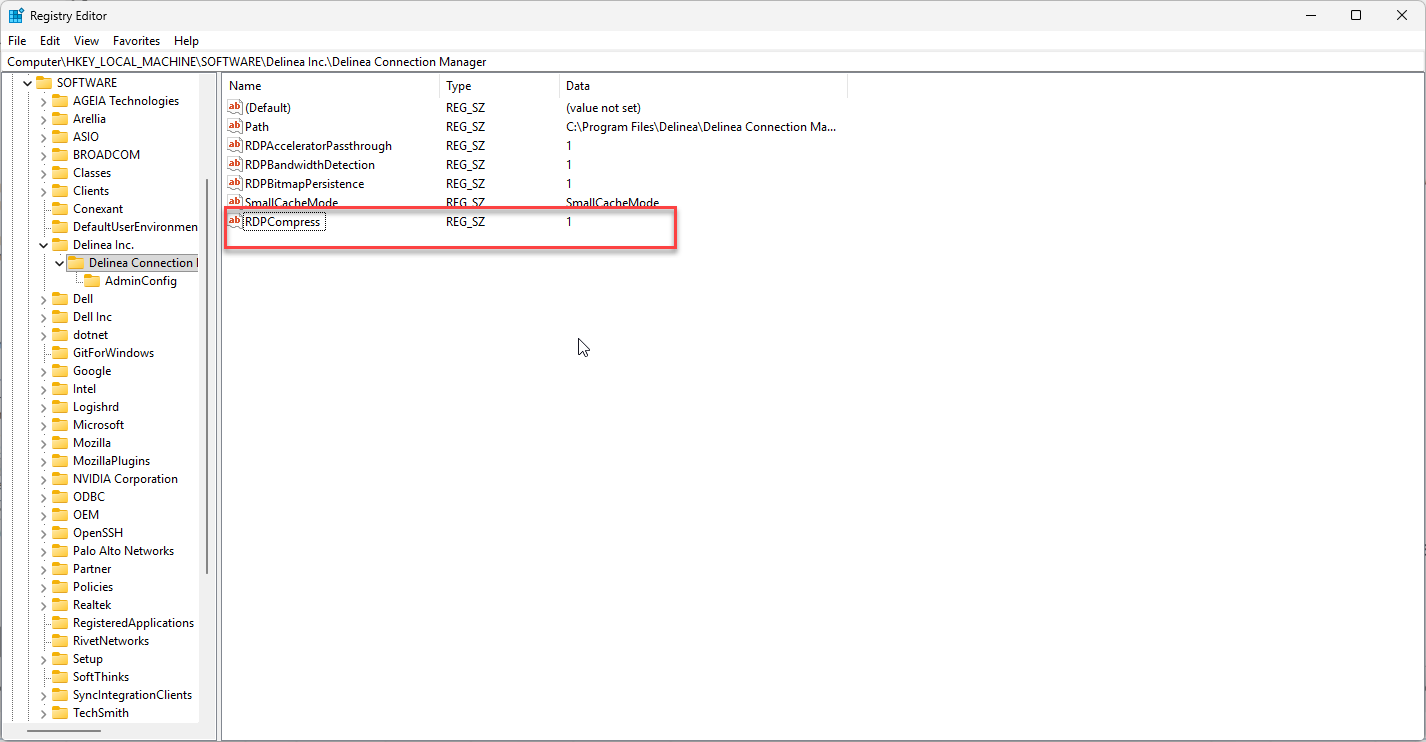
-
RDPNetworkConnectionType: Gets or sets the type of network connection used between the client and server. The network connection type information passed on to the server helps the server tune several parameters based on the network connection type. The value of the setting will depend on the network connection type. See additional documentation from Microsoft for more information.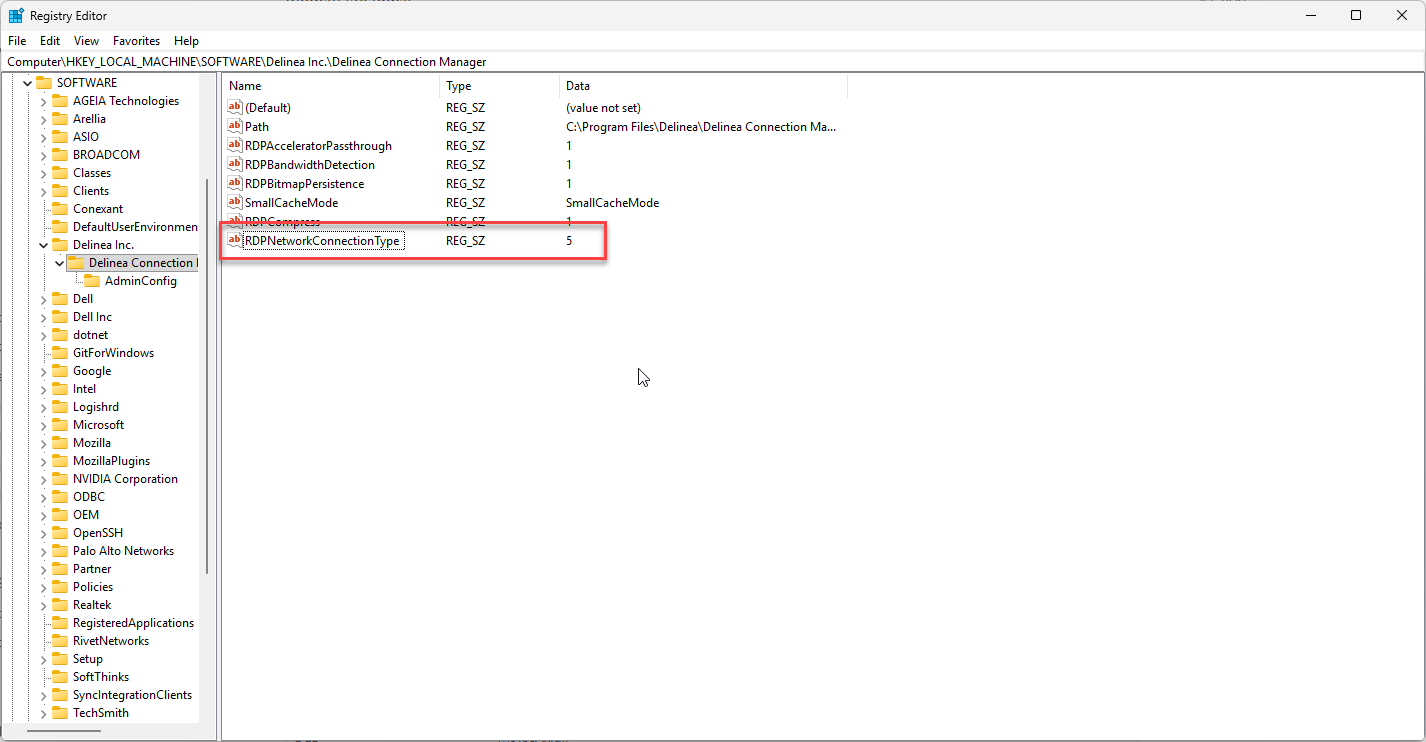
-
RDPPerformanceFlags: Specifies a set of features that can be set at the server to improve performance. The default value is 0, meaning no features are disabled:
-
RDPSuppressVerificationWarnings: Suppresses RDP certificate verification warnings. The default value isfalse: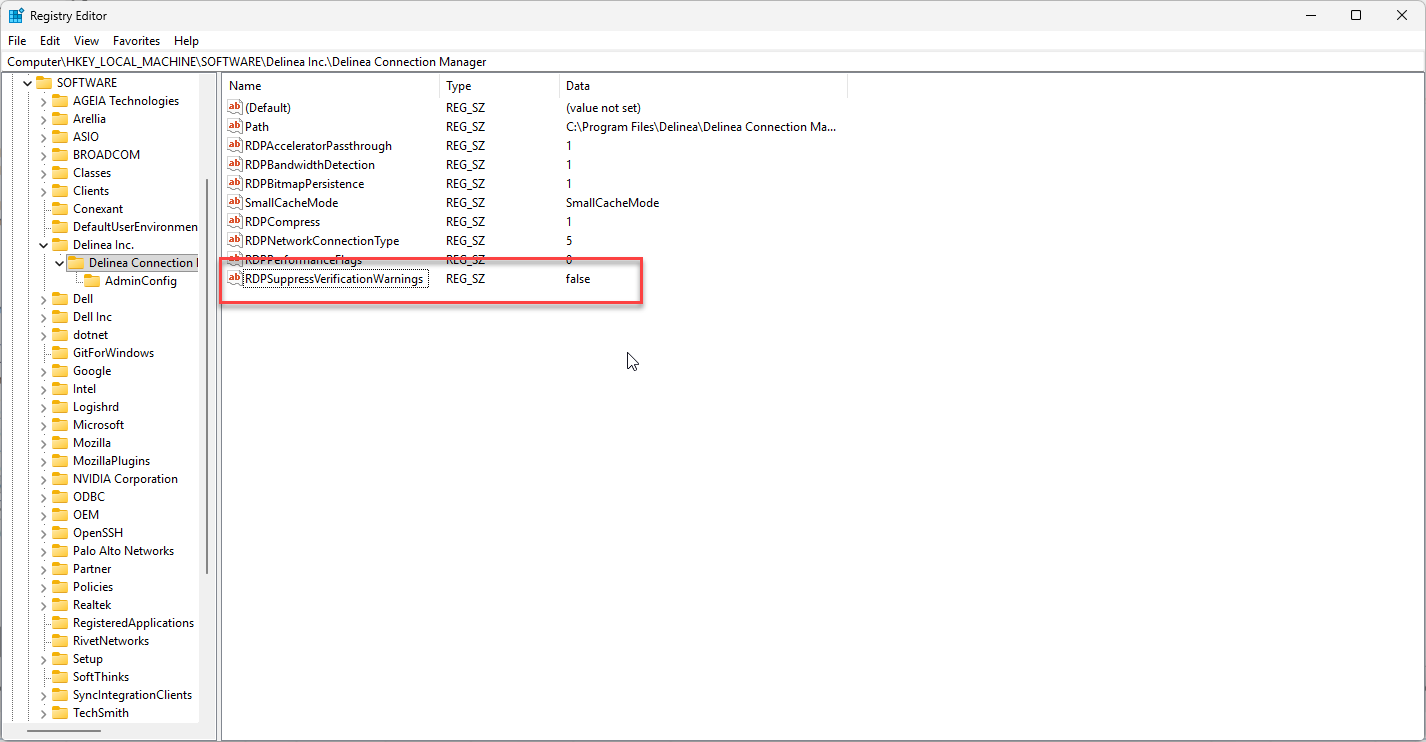
Disabling Local Vault via Admin Enforcement
See Disabling Local Vault via Admin Enforcement on Windows for more information on this setting.
Unidirectional Clipboard Enforcement on Windows
Administrators can unidirectionally restrict clipboard access from the RDP server to the users' local machine and vice-versa in both local and vault connections. This is an administrative setting and cannot be overridden by non-admin users.
The effective clipboard redirection behavior is determined by two factors: the Secret clipboard value and the individual restrict flags for each direction (Server to Client and Client to Server):
-
If the Secret clipboard value is false, all clipboard redirection is disabled regardless of restrict settings.
-
If the Secret clipboard value is true, each direction is enabled unless its corresponding restrict flag is set to true.
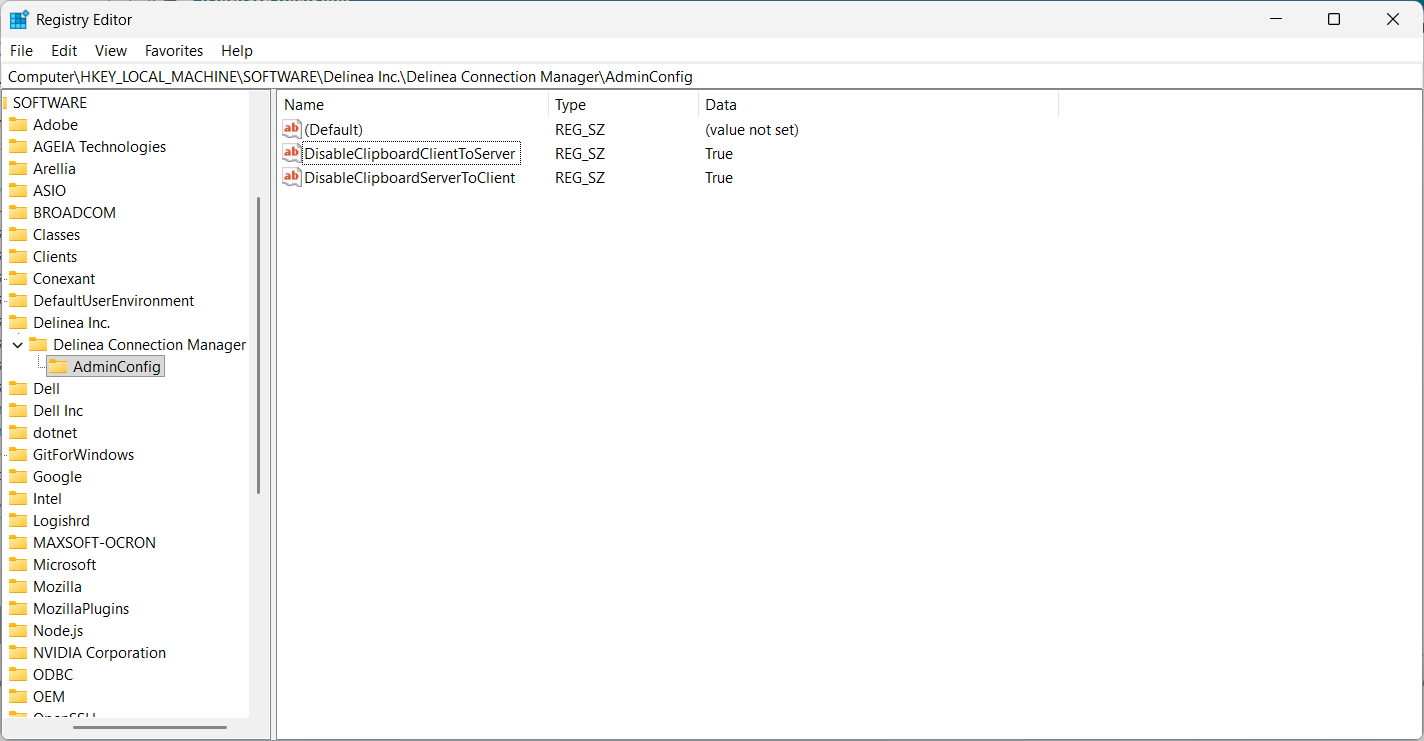
If you would like to restrict users from copying information from the RDP server to their local machine, create a new string value called DisableClipboardServerToClient and set the value to True as shown in the example blow:
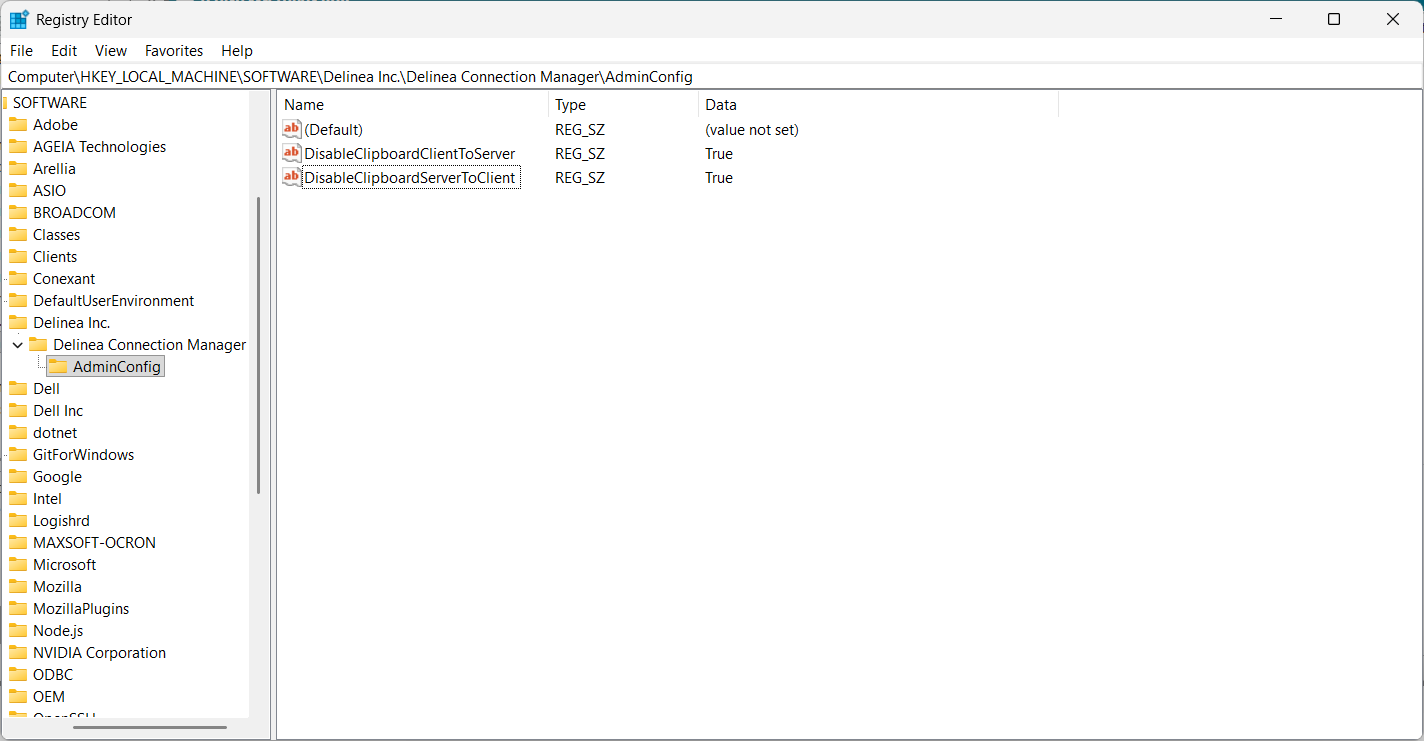
If you would like to restrict copying from the users' machine to the RDP server, create a string value called DisableClipboardClientToServer and set the value to True as shown in the example below:
For unidirectional clipboard enforcement on MacOS see Unidirectional Clipboard Enforcement on MacOS.
Pre-Trusting SSH Host Fingerprints
Administrators can pre-seed trusted SSH host fingerprints so that end users are not prompted to accept an unknown host key. Inside the AdminConfig registry key, create a string value (REG_SZ) named PublicKeyFingerprintStorage and set it to a JSON object that maps host names to their expected fingerprints.
The value must be a JSON dictionary where each key is a host name (optionally with a non-standard port appended as host:port) and each value is the expected fingerprint string:
{
    "server1.example.com": "SHA256:abc123...",
    "server2.example.com:2222": "SHA256:def456..."
}
Admin-defined fingerprints are merged with the per-user storage at startup. Admin entries overwrite matching user entries; unrelated user entries are preserved. Restart Connection Manager after editing the registry for changes to take effect. Invalid JSON is logged and ignored. This setting is Windows-only.
Pre-Approving Secret Server URLs
Administrators can pre-approve or explicitly deny Secret Server URLs for the external launcher so that end users are not shown the URL approval dialog. Inside the AdminConfig registry key, create a string value (REG_SZ) named ApprovedSsUrlStorage and set it to a JSON object that maps URLs to their approval status.
The value must be a JSON dictionary where each key is a Secret Server URL and each value is true (approved) or false (explicitly denied):
{
    "https://ss.example.com/SecretServer": true,
    "https://untrusted.example.com": false
}
Admin-defined URL approvals are merged with the per-user storage at startup. Admin entries overwrite matching user entries; unrelated user entries are preserved. Restart Connection Manager after editing the registry for changes to take effect. Invalid JSON is logged and ignored. This setting is Windows-only.
Deprecated Settings
The following registry settings are deprecated:
-
LogFileName
-
DataFileName
-
SettingsFileName
-
ApprovedSsUrlStorageFileName
-
PublicKeyFingerprintStorageFileName
-
TlsValidationBypassStorageFileName
-
PreviousBrandDataFileName
-
PreviousBrandAppSharedDataFolder


