
Map a Secret to a Connection
Connection Manager gives a user the ability to map secrets directly to connections.
The process is the same whether the connection is RDP or SSH.
-
From within Connection Manager, Create a New Connection to Remote Systemsor Edit Connections to Remote Systems. The Create a Remote Desktop Connection dialog box opens.
-
Enter the connection name, computer name, port, and from Credentials, select Map Secret. The Select Secret dialog box opens.
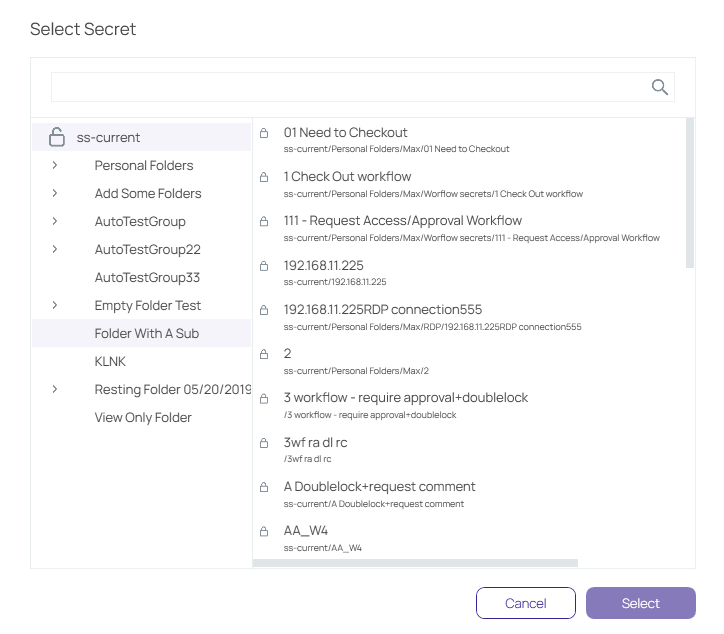
The Select Secret dialog box shows the currently existing connections. Those that are authenticated and accessible, are shown with an open lock next to the name. A closed lock indicated authentication is required, generally a username and password. Users can drill-down the navigation tree to access more folders.
Users may also search for a secret by name using the search bar at the top of the Select Secret window. Clicking on a connection and then typing in the search box will search only the folders within that connection.
-
Click the Secret to which you would like to map and click Select.
-
Click Save.
-
Your secret is now mapped to a connection.


