Viewing Added Systems
You can click Systems in the Resources menu to display the list of servers and network devices and view the following information for all systems:
- Name is the unique name you use to identify the system.
- DNS Name/IP address is the fully-qualified domain name or IP address defined for the system in DNS.
- Type specifies the type of system as a UNIX, Windows, Generic SSH, Cisco IOS, Cisco NX-OS, HP NonStop, Palo Alto Networks PAN-OS, IBM i, Check Point Gaia, F5 Networks BIG-IP, VMware VMkernel, Cisco AsyncOS, or Juniper Junos OS system.
- Last Test Result displays nothing if the last health check for the system was successful. A health check is performed when Test connection is selected from the Actions menu, when a system is added, and when a user logs on to a system using Privileged Access Service. If the system health check failed for any reason—for example, because the port used to check system health is blocked or a network connection to the system is not available—the column displays Unreachable or Unknown.
- Last Test displays the date and time of the last system health check. A health check is performed when Test connection is selected from the Actions menu, when a system is added, and when a user logs on to a system using Privileged Access Service.
- Discovered displays a time stamp, if the system was added during the discovery process. The time stamp indicates the time the system was added. If the system was added using a different method, such as manually or using the import process, nothing is displayed.
For more information about working with the Systems list, see the following topics:
Filtering Displayed Systems
By default, the Systems list displays all of the servers, workstations, and network devices you have added to the Privileged Access Service. You can filter the list by selecting a specific predefined or custom set. For example, if you only want to include Windows computers in the list, you can select the predefined Windows Systems set.
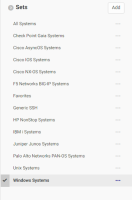
If you have added any manual or dynamic system sets, they are included in the list of available sets. You can then use those sets to select systems of a specific type or that match specific criteria, such as a custom query or the manual membership you have defined.
In addition to the predefined and custom sets, you can also filter the list of systems displayed by typing a search string, or by combining a filter and a search string. If you type a search string, systems and network devices with either a display name or a DNS name matching the string are included.
Identifying Favorites
As you add servers, workstations, and network devices to the system list, you might find it convenient to identify the ones you work with most frequently as favorites. You can identify the systems as your favorites by clicking the star icon next to the system name.
You can then filter the system list to only display the servers, workstations, and network devices that you work with most often. Identifying a system as a favorite also adds that system to the workspace you see when you click the Workspace tab, enabling you to see activity and take action at a glance without navigating the full list of systems that have been added to the Privileged Access Service.
Identifying a system as a favorite adds the system as an application tile in the Admin Portal on the Apps tab, allowing you to log on to the system manually directly from the Admin Portal.


